blog tagged
tutorial
Inkscape
Inkscape is the program I use to design vinyl and other projects. It's confusing and hard to use, but it's free.
General Drawing Tips
- Erasing: can draw box over piece want to cut out
- Hold shift and select both items
- Path difference
- Can use guideline for placement
- Path union - melds together
- Control shift makes circle symmetrical
- Control shift f brings up fill panel. Can mark no fill, and stroke panel for outline.
- If borders are the same, can Align and use center to align
- Path —> Outset thickens lines
Text
- Need to press object to path!
- Then Path —> Union
Tips
- Text —> Put on Path makes text follow shape you have selected
- Path —> Object to Path makes it so you can delete underlying shape
Outline Object
- Drag and drop file (choose embed)
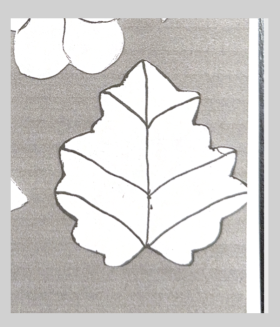
- Path —> Trace bitmap
- Single scan: centerline tracing
- Make sure the image is selected and press update
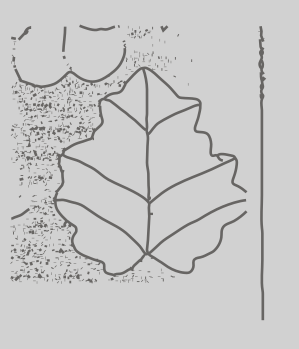
- Use the node tool to delete any artifacts that were picked up (also I changed the color to black).
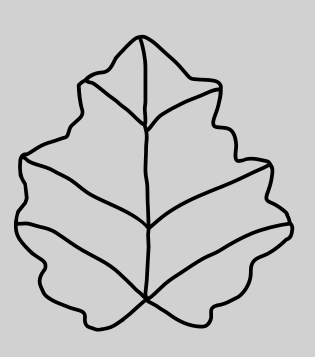
- Go to view -> display mode -> outline
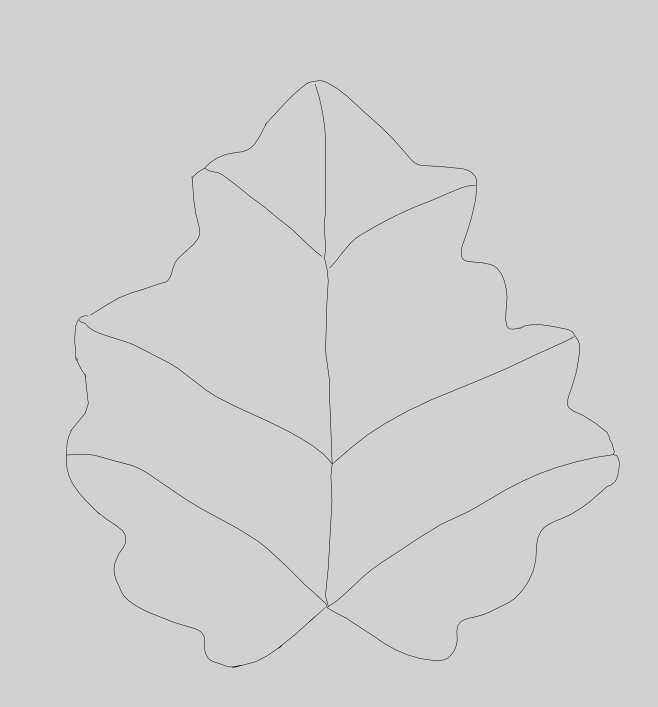
- Path -> stroke to path. If you want it thicker, go to fill and stroke -> stroke style -> and change the width
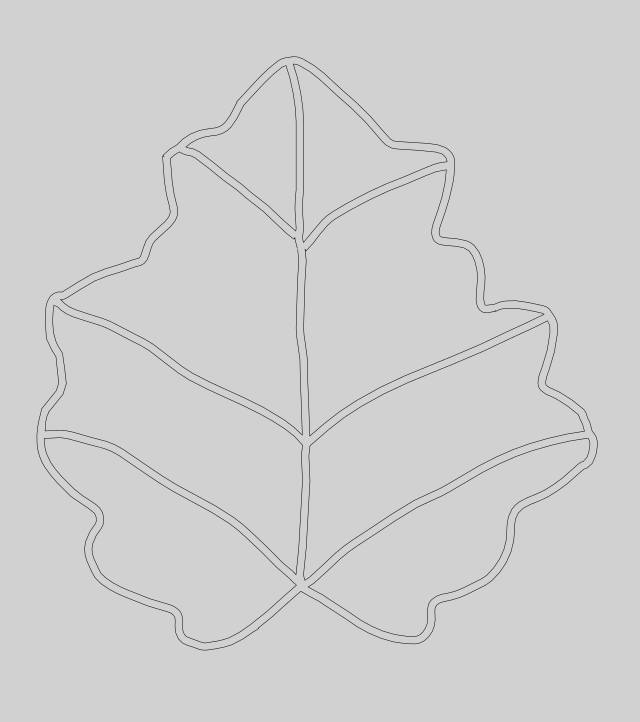
- Go to view -> display mode -> normal
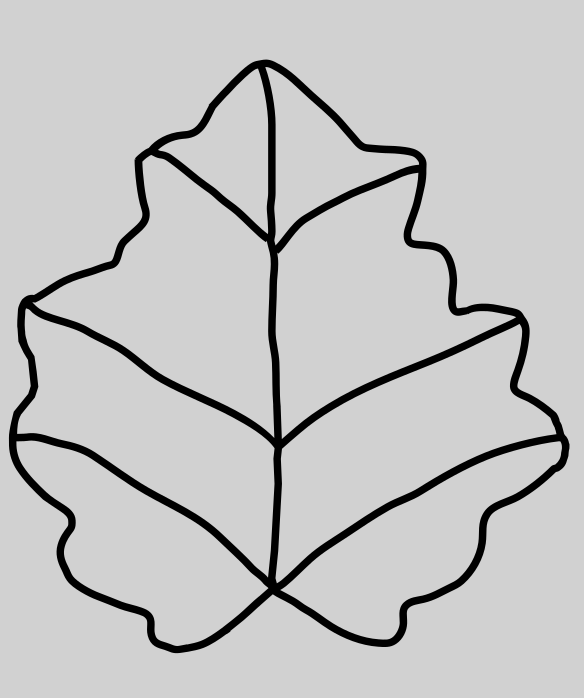
- Save as plain SVG file
Fill Object
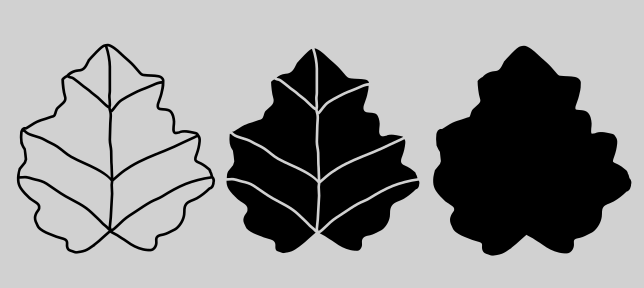
- Duplicate
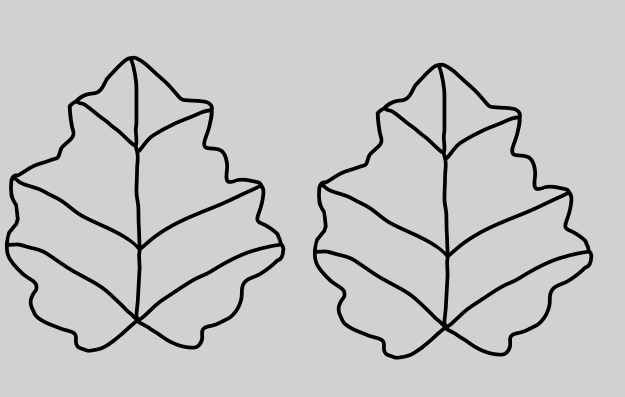
- Path -> break apart
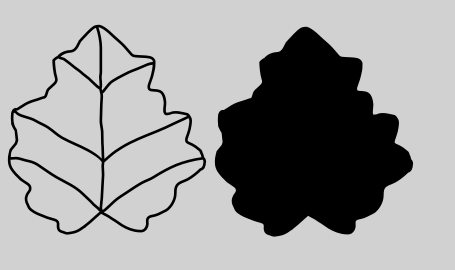
- Grab just the outline piece and move over
Writing Fonts
- Put in text
- Path —> Object to Path
- View —> Outline
- Draw Bezier Curve
- Combine multiple strokes
- Auto smooth
- Stroke at one
- Pass combine at end
Create a Cutout (like for one color vinyl)
- Drag and drop file (choose embed)
- Path —> Trace bitmap
- Multiple scan: change scans to 2
- Select colors
- Check smooth
- Uncheck Stack
- Check remove background
- Make sure the image is selected and press update
- Press node box and delete any pixels that were accidentally picked up
- Then go to Path —> Simplify
- Path —> Union
- Save as plain SVG file
Multiple layer vinyl
- Drag and drop file (choose embed)
- Path —> Trace bitmap
- Multiple scan: change scans to how many colors you have
- Select colors
- Uncheck smooth
- Check Stack
- Check remove background
- Make sure the image is selected and press update
- Then go to Object —> Ungroup
- Don’t need the different color layers, instead:
- Fill in image layers with paint
- Select all pieces and Path —> Combine
- Do this for each layer
- For base layer, fill in the whole image in base color. Go to Path —> Break Apart; then Path —> Union
- Select entire image, then Object —> Group
- Save as plain SVG file
Images